Using the Refine Console
Learn how to use the Refine Console — the workspace where you build, preview, edit, and export your applications.
The Console is where you build your application. Chat with the AI, see live previews, edit code, and export when ready.
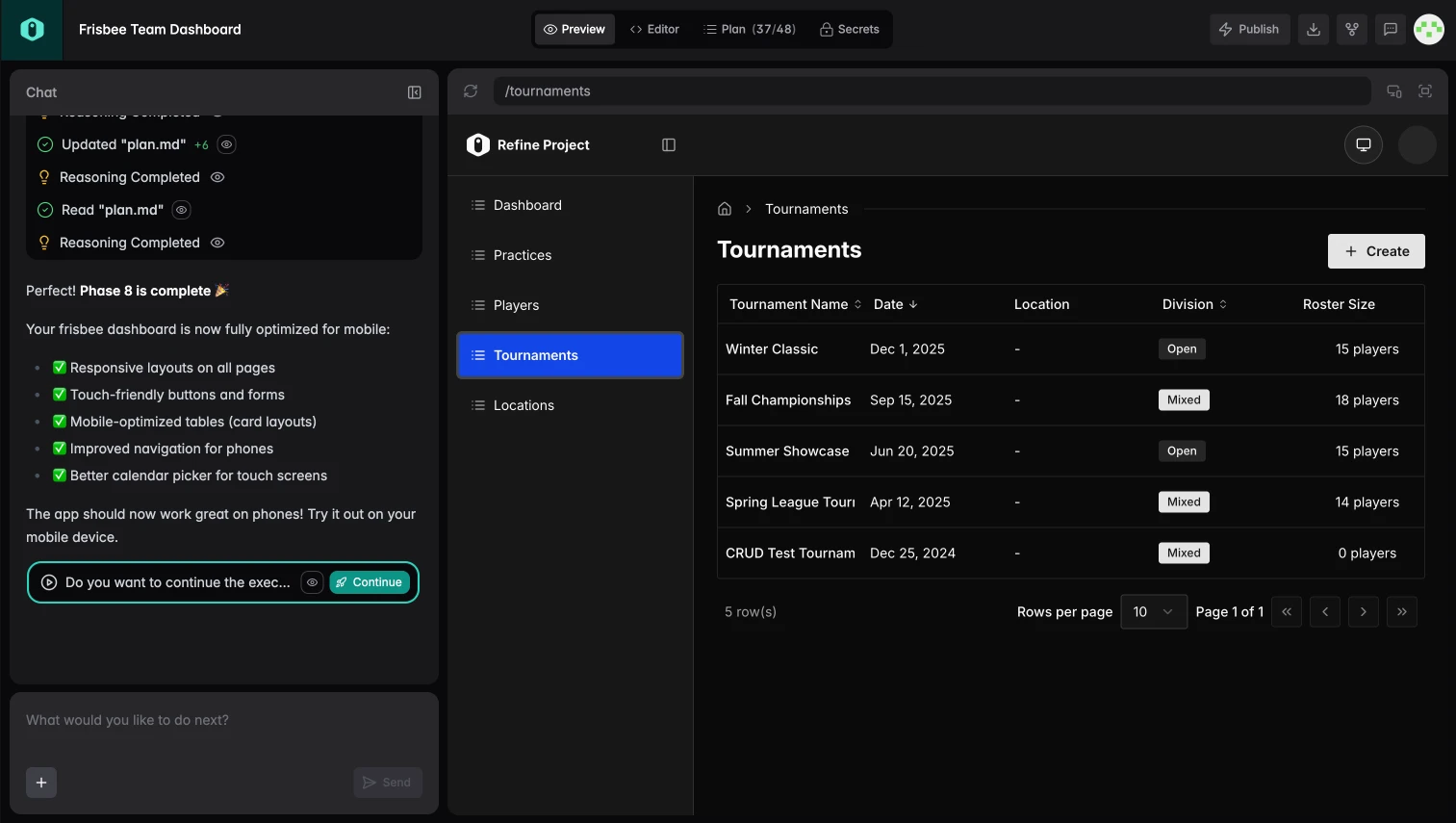
Console Layout
The Console has two main areas:
| Left Side | Right Side |
|---|---|
| AI Chat | Tabbed workspace |
Left side: Your conversation with the AI. This is the primary way to build and modify your app.
Right side: Tabs for Preview, Editor, Plan, and Settings.
AI Chat
The chat panel is your main interface for building.
How it works
Clarify A modal appears with quick questions: What columns do you need?
What actions? How should data be handled?
Iterating
Keep the conversation going to refine your app:
Add a search box that filters by name or emailMake the role column a dropdown with options: admin, user, viewerFor simple changes, the AI executes directly. For bigger changes, it may ask clarifying questions first.
Each message builds on the previous state.
Attachments
You can attach files to your messages:
- Screenshots of designs you want to match
- Data samples showing expected format
- Error messages for debugging
Tip
Attaching a screenshot of a UI you like helps the AI match the style.
Rating responses
After each AI response, you can rate it with thumbs up/down. This helps improve the model.
Preview Tab
The Preview tab shows a live, interactive version of your application.
Features
- Live updates — Changes appear as the AI generates them
- Interactive — Click buttons, fill forms, navigate pages
- Viewport switching — Toggle between mobile, tablet, and desktop views
Viewport options
| Icon | View | Width |
|---|---|---|
| 📱 | Mobile | 375px |
| 📱 | Tablet | 768px |
| 🖥️ | Desktop | Full width |
Tip
Test your app in mobile view before exporting. Internal tools are often used on various devices.
Editor Tab
The Editor tab shows the generated code.
What you can do
- Read — Understand what the AI generated
- Edit — Modify code directly
- Navigate — Browse the file structure
Editing code
Changes you make in the Editor are saved to your project. This is useful for:
- Fine-tuning styles
- Adding custom logic
- Fixing edge cases the AI missed
Editing code doesn't consume tokens. Only AI chat uses tokens.
Code structure
The generated project follows standard Refine patterns:
src/
├── App.tsx           # Main app component
├── pages/            # Page components
├── components/       # Reusable UI components
├── providers/        # Data and auth providers
└── index.tsx         # Entry point
Plan Tab
The Plan tab shows what the AI will build before it starts.
How it works
After you answer the clarifying questions, the AI creates a plan with:
- Phases — Grouped tasks (e.g., "Phase 1: Core UI")
- Tasks — Specific things the AI will build
- Order — What gets built first
Review the plan, then press Execute to start building.
During execution
As the AI works, the Plan tab shows:
- Which tasks are complete
- What's currently being built
- What's coming next
Tip
You can stop execution anytime if you want to change direction.
Settings Tab
The Settings tab manages your project configuration.
Integrations
Connect data sources to your project:
- Open Integrations
- Select a provider (Supabase, REST API)
- Follow the connection flow
You can connect or switch integrations anytime without starting a new project.
→ See Supabase Integration or REST API Integration for details.
Secrets
Store sensitive values like API keys and tokens:
- Click Add Secret
- Enter a name (e.g.,
STRIPE_API_KEY) - Enter the value
- Click Save
Secrets are:
- Encrypted at rest
- Available in your generated code as environment variables
- Required when connecting to authenticated APIs
When you export, secrets are NOT included. You'll need to set up environment variables in your deployment.
Version History
Refine automatically saves versions as you build.
Rollback
If something goes wrong:
- Open the chat panel
- Find the rollback option in the toolbar
- Select a previous version
- Your app reverts to that state
Tip
Rollback is useful when an AI change breaks something. Go back and try a different prompt.
Publish & Export
When you're ready to share your app:
| Option | What you get | Available on |
|---|---|---|
| Publish | Shareable link to your live app | All plans |
| Export | Download full source code | Pro only |
→ See Publish & Export for detailed instructions.
Keyboard Shortcuts
| Action | Shortcut |
|---|---|
| Send message | Enter |
| New line in message | Shift + Enter |
| Focus chat | Cmd/Ctrl + / |
Tips for Effective Building
Be specific
❌ "Make it look better"
✅ "Change the table header to have a blue background (#2563eb) and white text"
Build incrementally
Don't try to build everything in one prompt. Start simple, then iterate:
- "Create a user table with name and email"
- "Add a status column with badge styling"
- "Add filters for status and date range"
- "Add the ability to edit users inline"
Use the Editor for small fixes
If you need to change a color or fix a typo, edit directly in the Editor. Save your tokens for structural changes.
Check Preview on mobile
Many internal tools are used on tablets. Test the mobile viewport before publishing.
Next Steps
- Prompting Guide — Get better results from the AI
- Publish & Export — Ship your application
- Troubleshooting — Common issues and fixes