

Introduction
Passwords are one of the most popular ways to authenticate a user. However, passwords have disadvantages, such as being subject to brute force attacks and data breaches.
Another significant problem with password-based login is that keeping track of different passwords can become challenging. This is where the term 'OTP' (One Time Password) can be helpful.
When we talk about OTP-based authentication, users need to enter a six-digit OTP number sent to them through an automated call or SMS when they want to access the application.
See the full example project in the Refine repo: blog-refine-supabase-auth
What is Supabase?
Supabase is an open-source Firebase alternative. It provides a real-time database, authentication, and media buckets in one platform. You can use Supabase with any frontend tool, such as React, Angular, or Vue.js.
One of the great features of Supabase is its Auth service. Supabase Auth allows you to easily add OTP-based authentication to your app with just a few lines of code.
In this guide, you will implement OTP-based login in Refine using the Supabase library.
What is Refine?
Refine is a React-based open-source framework for building admin panels, dashboards, internal tools, and storefront apps rapidly. It helps developers avoid repetitive tasks demanded by CRUD operations and provides solutions for authentication, access control, routing, networking, and state management.
One of the great features of Refine is its out-of-the-box data provider integrations. Refine has a built-in data provider for Supabase, and we'll see how to use it properly.
Prerequisites
To follow this guide, you must install the latest Node.js version on your system and be familiar with React and TypeScript concepts. For this tutorial, you will also require a Twilio account to send out OTP text messages and a Github account to sign up for Supabase.
Getting Started
Start by creating the Refine app with the create refine-app CLI tool.
npm create refine-app@latest refine-supabase-auth
Choose:
✔ Downloaded remote source successfully.
✔ Choose a project template · Refine(Vite)
✔ What would you like to name your project?: · refine-supabase-auth
✔ Choose your backend service to connect: · Supabase
✔ Do you want to use a UI Framework?: · shadcn/ui
✔ Do you want to add example pages?: · no
✔ Choose a package manager: · npm
Choose Supabase as the backend service, shadcn/ui as the UI framework, and npm as the package manager. Once the project is ready, move into the app directory and start the development server:
cd refine-supabase-auth
npm run dev
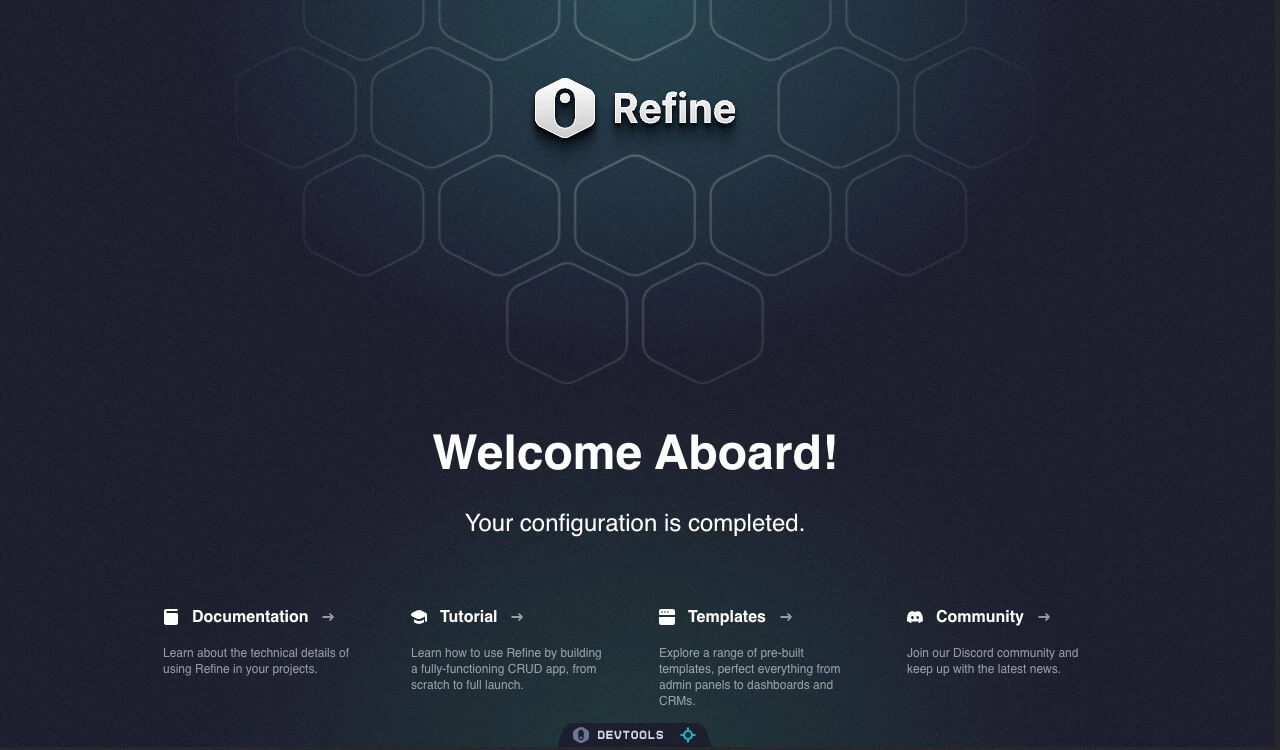 Refine app dashboard preview
Set up the Supabase Project
Refine's Supabase data provider connects your app to Supabase and handles data operations through Refine's data layer. Now let's set up the Supabase project and get the credentials we need.
Head over to Supabase dashboard and sign in to your Supabase account. Next, create a new project by clicking on the "New Project" button.
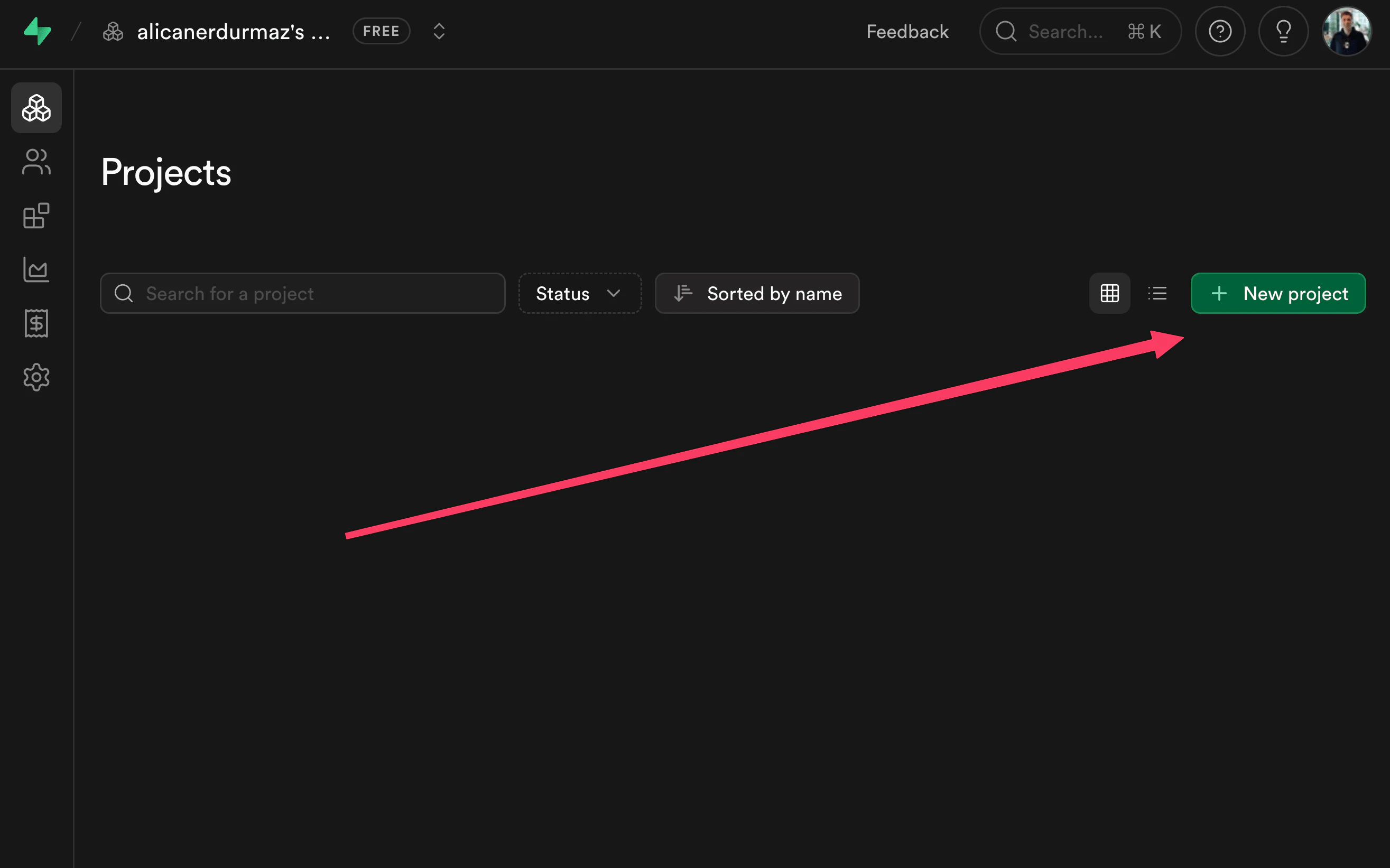 Supabase project setup screen
Add the name of the project and the database password, then wait for Supabase to finish creating the project.
After the project is ready, get the Supabase URL and API key from the project settings and paste the values into src/providers/constants.ts:
// Supabase Dashboard -> Integrations -> Data API
export const SUPABASE_URL = "YOUR SUPABASE URL";
// Supabase Dashboard -> Project Settings -> API Keys -> Publishable key
export const SUPABASE_KEY = "YOUR SUPABASE KEY";
Once the project is created, go to Authentication -> Sign In / Auth providers.
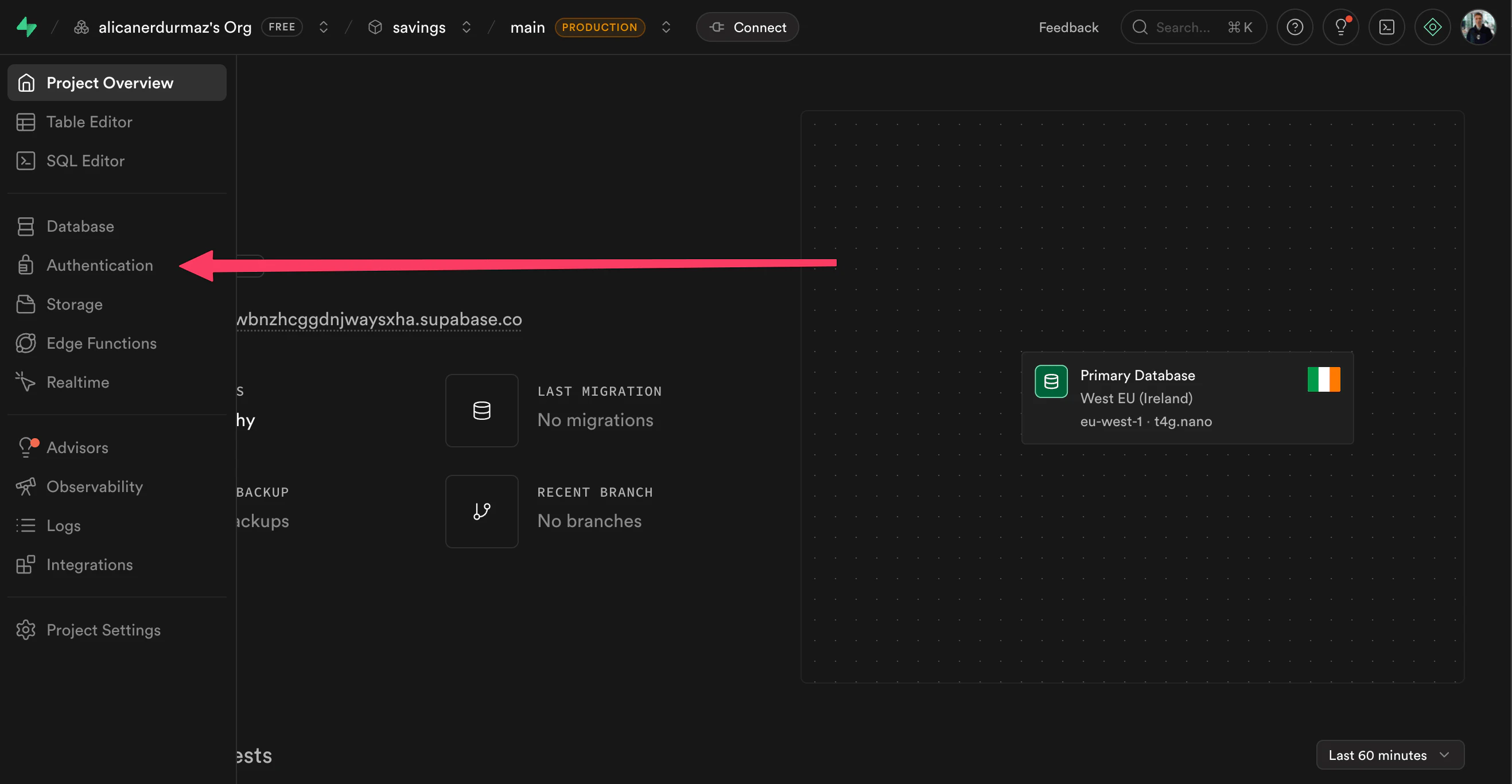 Supabase project settings panel
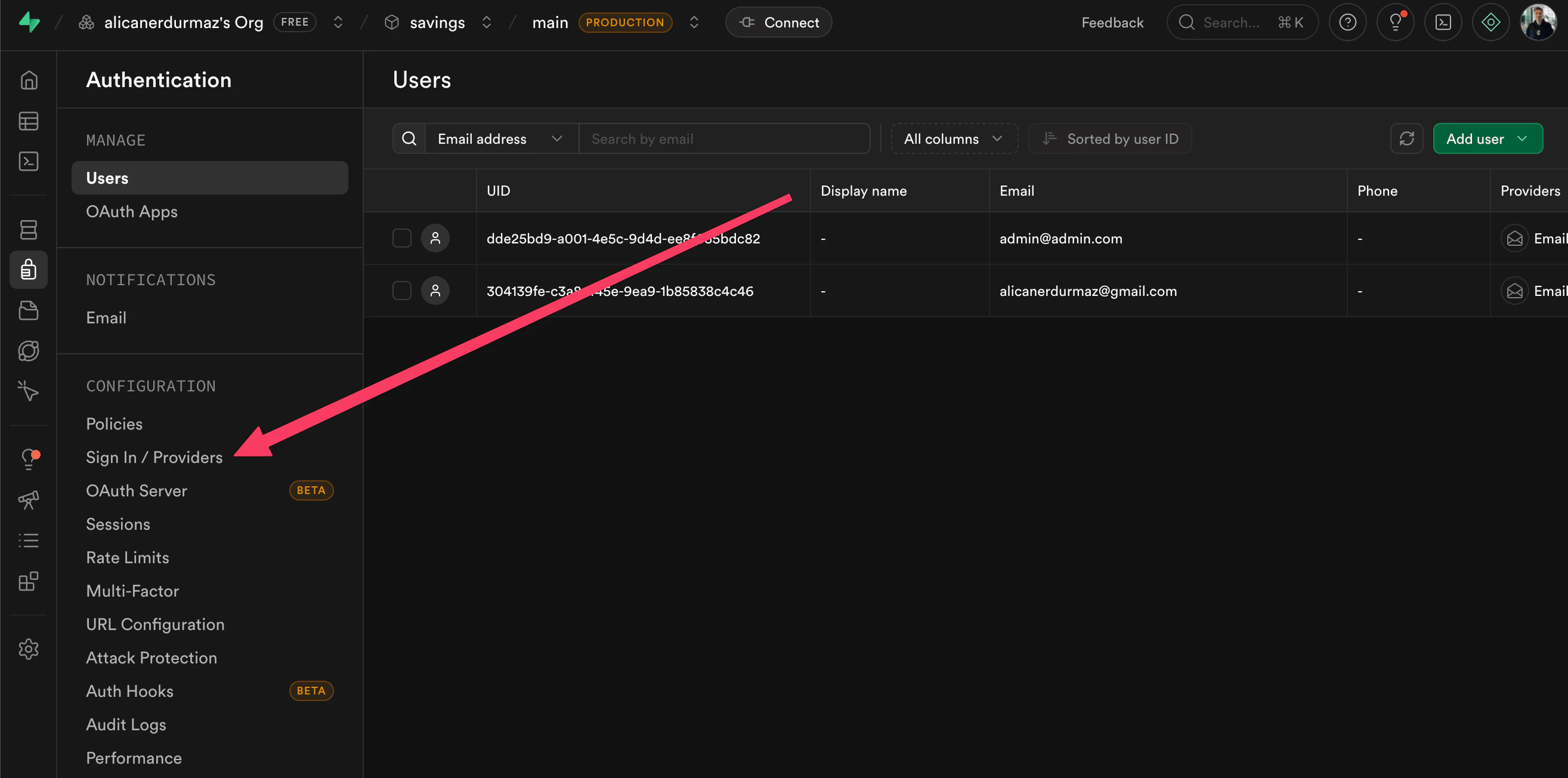 Supabase API keys section
You will find the Phone Auth option in the Auth providers section; enable it and select Twilio as the SMS provider. For this setup, use Twilio Verify, not a generic Twilio Messaging configuration.
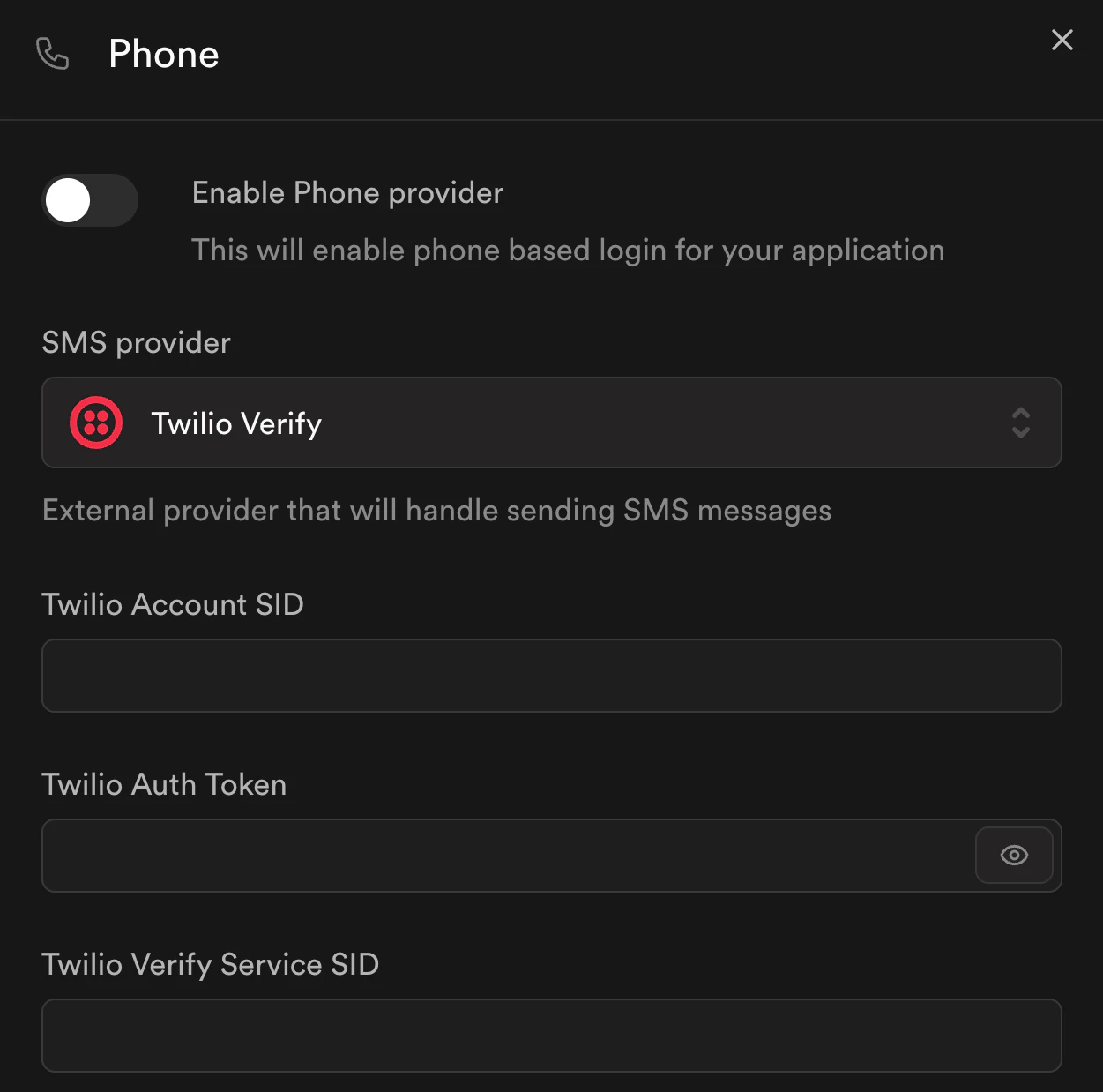 Supabase authentication settings
Create a Twilio account and open the Twilio Console. Supabase needs these three values from your Twilio Verify setup:
- Twilio Account SID: You can find it in the Twilio Console under your project credentials. Twilio's Verify API docs also note that the Account SID is available in the console, and it starts with
AC. See the Accounts docs. - Twilio Auth Token: You can copy it from the same Twilio Console credentials area. Twilio documents Auth Token management here: Auth Token docs.
- Twilio Verify Service SID: Create a Verify service from the Twilio Verify Service overview. After you create the service, copy its SID. Twilio Verify Service SIDs start with
VA.
Paste those values into the Twilio fields in Supabase and keep the rest of the OTP settings as needed. You can also adjust the OTP expiry time, code length, and SMS template based on your requirements. For this guide, the default values are enough.
The backend setup is now complete. In the next section, you will start building the app's frontend.
Create the Login Page
In this guide, you are allowing users to access their account without requiring a password. Once the users log into their account, they will see a list of colors on the dashboard screen.
On the login page, you need to create a two-step form. In the first step, the user will enter the mobile number to receive the OTP message, and in the second step, the user will enter the OTP token to log in. Display an error if the OTP token is invalid or expired.
src/pages/login.tsx
import { useLogin } from "@refinedev/core";
import { type FormEvent, useRef, useState } from "react";

import { Button } from "@/components/ui/button";
import {
  Card,
  CardContent,
  CardDescription,
  CardHeader,
  CardTitle,
} from "@/components/ui/card";
import { Input } from "@/components/ui/input";
import { Label } from "@/components/ui/label";
import { supabaseClient } from "@/providers/supabase-client";

let persistedLoginError: string | null = null;
let persistedMobileNo = "";
let persistedFormState: "SEND_OTP" | "LOGIN" = "SEND_OTP";

export const LoginPage = () => {
  const mobileNoRef = useRef(persistedMobileNo);
  const otpRef = useRef("");
  const [error, setError] = useState<string | null>(() => persistedLoginError);
  const [formState, setFormState] = useState<"SEND_OTP" | "LOGIN">(
    () => persistedFormState,
  );

  const { mutate: login, isPending } = useLogin();

  const setFormError = (message: string | null) => {
    persistedLoginError = message;
    setError(message);
  };

  const setPersistedFormState = (nextState: "SEND_OTP" | "LOGIN") => {
    persistedFormState = nextState;
    setFormState(nextState);
  };

  const backToSendOtp = () => {
    otpRef.current = "";
    setFormError(null);
    setPersistedFormState("SEND_OTP");
  };

  const onLogin = () => {
    login(
      { mobileNo: mobileNoRef.current, otp: otpRef.current },
      {
        onSuccess: ({ success, error }) => {
          if (!success) {
            setFormError(error?.message ?? error?.name ?? "Login failed");
            return;
          }

          setFormError(null);
          persistedMobileNo = "";
          setPersistedFormState("SEND_OTP");
        },
        onError: (error) => setFormError(error.message),
      },
    );
  };

  const onSubmit = (event: FormEvent<HTMLFormElement>) => {
    event.preventDefault();

    if (formState === "SEND_OTP") {
      void onSendOtp();
      return;
    }

    onLogin();
  };

  const mobileFormRender = () => (
    <div className="space-y-4">
      <div className="space-y-2">
        <Label htmlFor="mobile">Enter your mobile number</Label>
        <Input
          id="mobile"
          onChange={(e) => {
            mobileNoRef.current = e.target.value;
            persistedMobileNo = e.target.value;
          }}
          name="mobile"
          type="tel"
          defaultValue={mobileNoRef.current}
          placeholder="+14155552671"
        />
      </div>
      <Button className="w-full" type="submit">
        Send OTP
      </Button>
    </div>
  );

  const otpFormRender = () => (
    <div className="space-y-4">
      <div className="rounded-md border border-border bg-muted/40 px-3 py-2 text-sm text-muted-foreground">
        Code sent to{" "}
        <span className="font-medium text-foreground">
          {mobileNoRef.current}
        </span>
      </div>
      <div className="space-y-2">
        <Label htmlFor="otp">Enter OTP</Label>
        <Input
          id="otp"
          onChange={(e) => {
            otpRef.current = e.target.value;
          }}
          name="otp"
          defaultValue={otpRef.current}
          placeholder="123456"
        />
      </div>
      <div className="flex gap-2">
        <Button className="flex-1" type="submit" disabled={isPending}>
          Login
        </Button>
        <Button
          className="flex-1"
          type="button"
          variant="outline"
          disabled={isPending}
          onClick={backToSendOtp}
        >
          Change Number
        </Button>
      </div>
    </div>
  );

  const onSendOtp = async () => {
    const mobileNo = mobileNoRef.current || "";
    if (!/^\+[1-9]{1}[0-9]{3,14}$/.test(mobileNo)) {
      setFormError("Please enter a valid mobile number");
      return;
    }

    const { error } = await supabaseClient.auth.signInWithOtp({
      phone: mobileNo,
    });
    if (error) {
      setFormError(error.message);
      return;
    }

    setFormError(null);
    setPersistedFormState("LOGIN");
  };

  return (
    <div className="relative flex min-h-screen items-center justify-center overflow-hidden bg-background px-4 py-10">
      <div className="pointer-events-none absolute inset-0 bg-gradient-to-b from-zinc-100 via-background to-background dark:from-zinc-900/60 dark:via-background dark:to-background" />
      <Card className="relative z-10 w-full max-w-md border-border/70 bg-card/95 shadow-xl shadow-zinc-950/5 backdrop-blur dark:shadow-black/25">
        <CardHeader className="space-y-1">
          <CardTitle>Sign In</CardTitle>
          <CardDescription>
            {formState === "SEND_OTP"
              ? "Enter your phone number to receive a one-time password."
              : "Enter the one-time password sent to your phone."}
          </CardDescription>
        </CardHeader>
        <CardContent className="space-y-4">
          {error ? (
            <div className="rounded-md border border-destructive/20 bg-destructive/10 px-3 py-2 text-sm text-destructive">
              {error}
            </div>
          ) : null}
          <form className="space-y-4" onSubmit={onSubmit}>
            {formState === "SEND_OTP" && mobileFormRender()}
            {formState === "LOGIN" && otpFormRender()}
          </form>
        </CardContent>
      </Card>
    </div>
  );
};
In the above code, we set a formState state variable to define whether to render the mobile input or the OTP input on the screen. If there's any error, set the error variable and render it inside the login card.
Import the <LoginPage /> component in the App.tsx file and create a route for it.
To create the routes, import the <Route /> component from react-router and render <LoginPage /> on /login. The scaffold already includes the theme, notification, devtools, and live provider setup, so you can keep that structure and wire the login page into the authenticated route tree. We also use <Authenticated />, <Outlet />, <CatchAllNavigate />, and <NavigateToResource /> to protect routes and redirect the user to the colors resource if they are already logged in.
Refer to the Auth Provider documentation to learn more about authentication. →
Refer to the documentation to learn more routing in Refine →
src/App.tsx
import {
  Authenticated,
  ErrorComponent,
  GitHubBanner,
  Refine,
} from "@refinedev/core";
import { DevtoolsPanel, DevtoolsProvider } from "@refinedev/devtools";
import { RefineKbar, RefineKbarProvider } from "@refinedev/kbar";
import routerProvider, {
  CatchAllNavigate,
  DocumentTitleHandler,
  NavigateToResource,
  UnsavedChangesNotifier,
} from "@refinedev/react-router";
import { liveProvider } from "@refinedev/supabase";
import { BrowserRouter, Routes, Route, Outlet } from "react-router";

import { Toaster } from "@/components/refine-ui/notification/toaster";
import { useNotificationProvider } from "@/components/refine-ui/notification/use-notification-provider";
import { ThemeProvider } from "@/components/refine-ui/theme/theme-provider";
import { Colors } from "@/pages/colors";
import { Layout } from "@/pages/layout";
import { LoginPage } from "@/pages/login";
import authProvider from "@/providers/auth";
import { dataProvider } from "@/providers/data";
import { supabaseClient } from "@/providers/supabase-client";

import "./App.css";

function App() {
  return (
    <BrowserRouter>
      {/* <GitHubBanner /> */}
      <RefineKbarProvider>
        <ThemeProvider>
          <DevtoolsProvider>
            <Refine
              routerProvider={routerProvider}
              dataProvider={dataProvider}
              liveProvider={liveProvider(supabaseClient)}
              authProvider={authProvider}
              notificationProvider={useNotificationProvider()}
              resources={[
                {
                  name: "colors",
                  list: "/colors",
                },
              ]}
              options={{
                syncWithLocation: true,
                warnWhenUnsavedChanges: true,
              }}
            >
              <Routes>
                <Route
                  element={
                    <Authenticated
                      key="authenticated-routes"
                      fallback={<CatchAllNavigate to="/login" />}
                    >
                      <Layout>
                        <Outlet />
                      </Layout>
                    </Authenticated>
                  }
                >
                  <Route
                    index
                    element={<NavigateToResource resource="colors" />}
                  />
                  <Route path="/colors" element={<Colors />} />
                </Route>

                <Route
                  element={
                    <Authenticated key="auth-pages" fallback={<Outlet />}>
                      <NavigateToResource resource="colors" />
                    </Authenticated>
                  }
                >
                  <Route path="/login" element={<LoginPage />} />
                </Route>

                <Route
                  element={
                    <Authenticated
                      key="catch-all"
                      fallback={<CatchAllNavigate to="/login" />}
                    >
                      <Layout>
                        <Outlet />
                      </Layout>
                    </Authenticated>
                  }
                >
                  <Route path="*" element={<ErrorComponent />} />
                </Route>
              </Routes>
              <Toaster />
              <RefineKbar />
              <UnsavedChangesNotifier />
              <DocumentTitleHandler />
            </Refine>
            <DevtoolsPanel />
          </DevtoolsProvider>
        </ThemeProvider>
      </RefineKbarProvider>
    </BrowserRouter>
  );
}

export default App;
Also, notice that create refine-app has already wired the router, providers, theme, notifications, and devtools for you.
Data Provider
The dataProvider acts as a data layer for your app that makes the HTTP requests and encapsulates how the data is retrieved. It requests and returns the data using predefined methods like create(), getMany(), etc. Refine consumes these methods via data hooks.
For example, when you use the useList hook, Refine internally calls the getList() method of the data provider.
In this case, src/providers/data.ts creates the data provider with supabaseDataProvider(supabaseClient). Supabase is supported out-of-the-box as a data provider by Refine. Here, the data provider internally calls supabase-js database methods like select(), insert(), etc., to handle the data.
You can learn more about data provider in the Refine docs.
Auth Provider
The authProvider is the object that Refine uses to authenticate and authorize users. In this app, the important methods are login, logout, check, getIdentity, and onError. These methods return Promises and are used internally by hooks like useLogin() and useLogout().
create refine-app scaffolds src/providers/auth.ts when you choose Supabase. For this guide, you only need to customize that provider for the OTP flow.
You can read more about auth provider in detail here.
Alright, now coming back to the <LoginPage /> component. When the user requests for OTP, validate the mobile number using the regex shown in the below code. The mobile number is expected to include the country code; you can use other third-party components for mobile input with a country code dropdown and mobile validation out-of-the-box.
We'll use the input field in this guide for brevity.
import { supabaseClient } from "@/providers/supabase-client";

// ...

const onSendOtp = async () => {
  const mobileNo = mobileNoRef.current || "";
  if (!/^\+[1-9]{1}[0-9]{3,14}$/.test(mobileNo)) {
    setFormError("Please enter a valid mobile number");
    return;
  }

  const { error } = await supabaseClient.auth.signInWithOtp({
    phone: mobileNo,
  });
  if (error) {
    setFormError(error.message);
    return;
  }
  setFormError(null);
  setPersistedFormState("LOGIN");
};

// ...
To send the OTP message to the user, use the supabase.auth.signInWithOtp() method and pass the mobile number in the phone property as shown above.
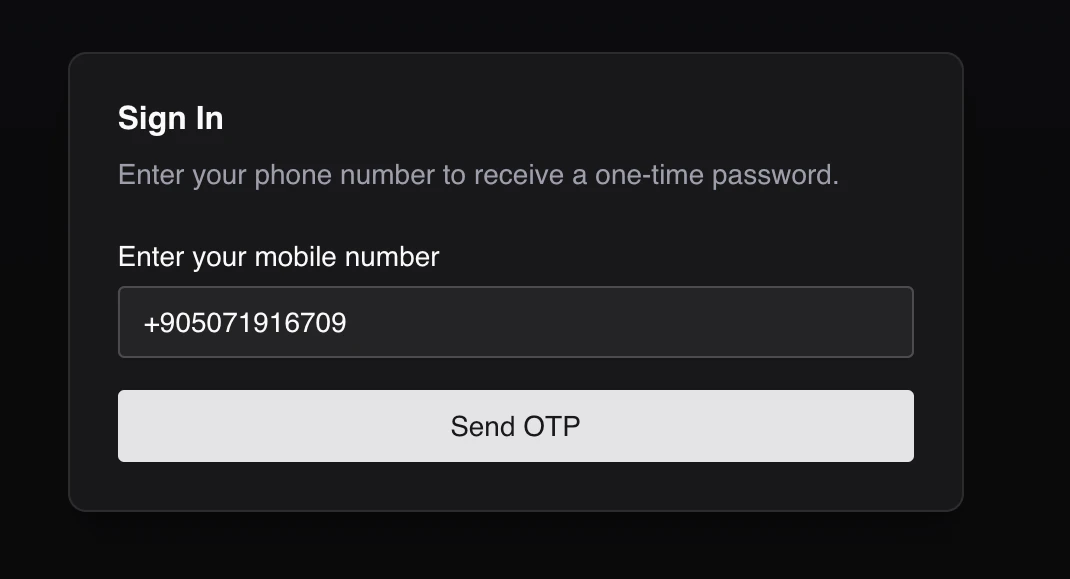 Login form with OTP option
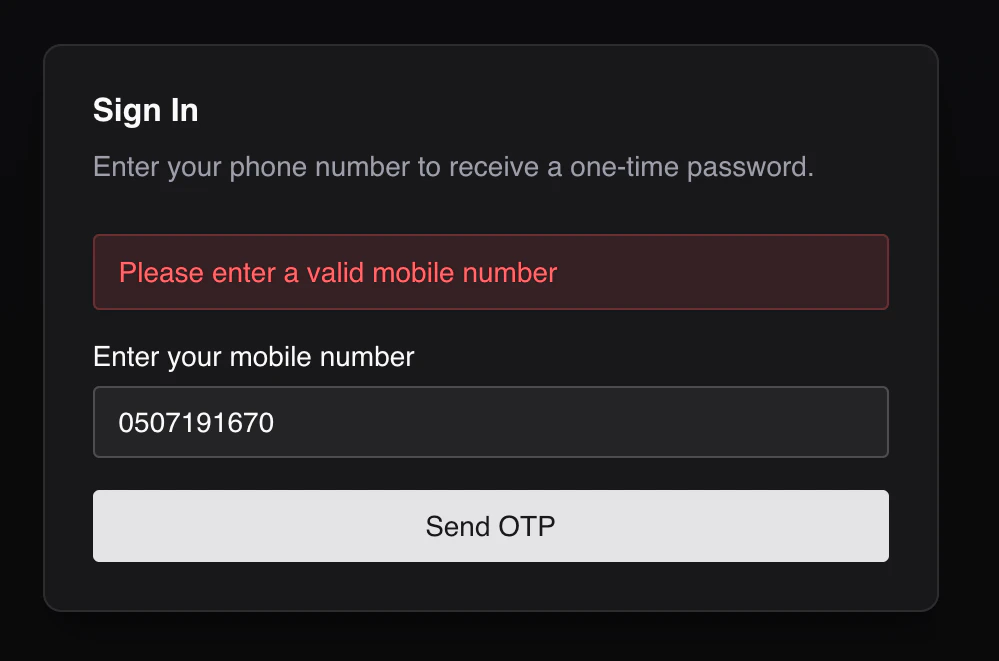 Invalid login error message
Update the login property in authProvider to accept the mobile number and OTP as input and call the supabase.auth.verifyOtp() method for verifying the OTP entered by the user and enabling access to the dashboard page of the app.
src/providers/auth.ts
import type { AuthProvider } from "@refinedev/core";
import { supabaseClient } from "@/providers/supabase-client";

const authProvider: AuthProvider = {
  login: async ({ mobileNo, otp }) => {
    const { data, error } = await supabaseClient.auth.verifyOtp({
      phone: mobileNo,
      token: otp,
      type: "sms",
    });

    if (error) {
      return {
        success: false,
        error: error || {
          message: "Login failed",
          name: "Invalid OTP",
        },
      };
    }

    if (data.session) {
      return {
        success: true,
        redirectTo: "/",
      };
    }

    return {
      success: false,
      error: {
        message: "Login failed",
        name: "Invalid OTP",
      },
    };
  },
  logout: async () => {
    const { error } = await supabaseClient.auth.signOut();

    if (error) {
      return {
        success: false,
        error: error || {
          message: "Logout failed",
          name: "Unexpected error",
        },
      };
    }

    return {
      success: true,
      redirectTo: "/login",
    };
  },
  onError: async (error) => {
    if (error?.code === "PGRST301" || error?.code === 401) {
      return {
        logout: true,
      };
    }

    return { error };
  },
  check: async () => {
    const { data, error } = await supabaseClient.auth.getSession();
    const session = data.session;

    if (!session) {
      return {
        authenticated: false,
        error: error || {
          message: "Check failed",
          name: "Session not found",
        },
        redirectTo: "/login",
      };
    }

    return {
      authenticated: true,
    };
  },
  getPermissions: async () => {
    const { data } = await supabaseClient.auth.getUser();

    return data.user?.role ?? null;
  },
  getIdentity: async () => {
    const { data } = await supabaseClient.auth.getUser();
    const user = data.user;

    if (!user) {
      return null;
    }

    return {
      ...user,
      name: user.phone ?? user.email,
    };
  },
};

export default authProvider;
In the onLogin() function of the <LoginPage /> component, pass the mobile number and OTP to the login() acquired from the useLogin hook.
// ...

const { mutate: login, isPending } = useLogin();

const onLogin = () => {
  login(
    { mobileNo: mobileNoRef.current, otp: otpRef.current },
    {
      onSuccess: ({ success, error }) => {
        if (!success) {
          setFormError(error?.message ?? error?.name ?? "Login failed");
          return;
        }

        setFormError(null);
        persistedMobileNo = "";
        setPersistedFormState("SEND_OTP");
      },
      onError: (error) => setFormError(error.message),
    },
  );
};
If the OTP is invalid, the error message will be displayed as shown below.
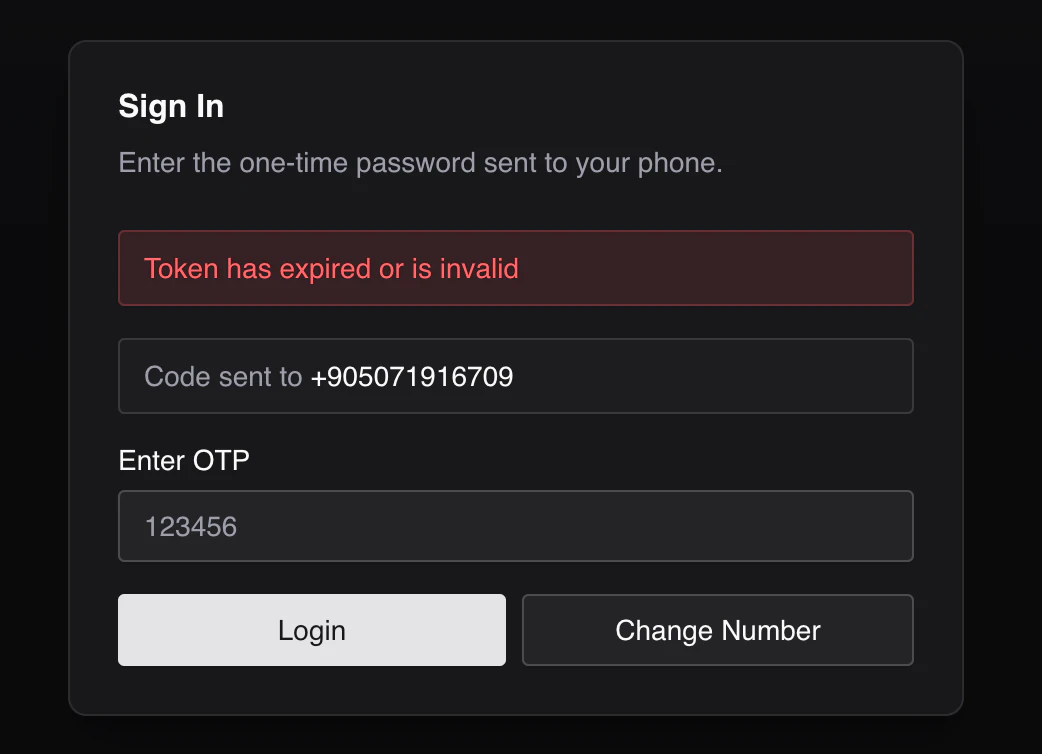 OTP token entry screen
Creating the Resource Table
The authentication flow is now complete. Let’s finish the rest of the app by creating the colors resource.
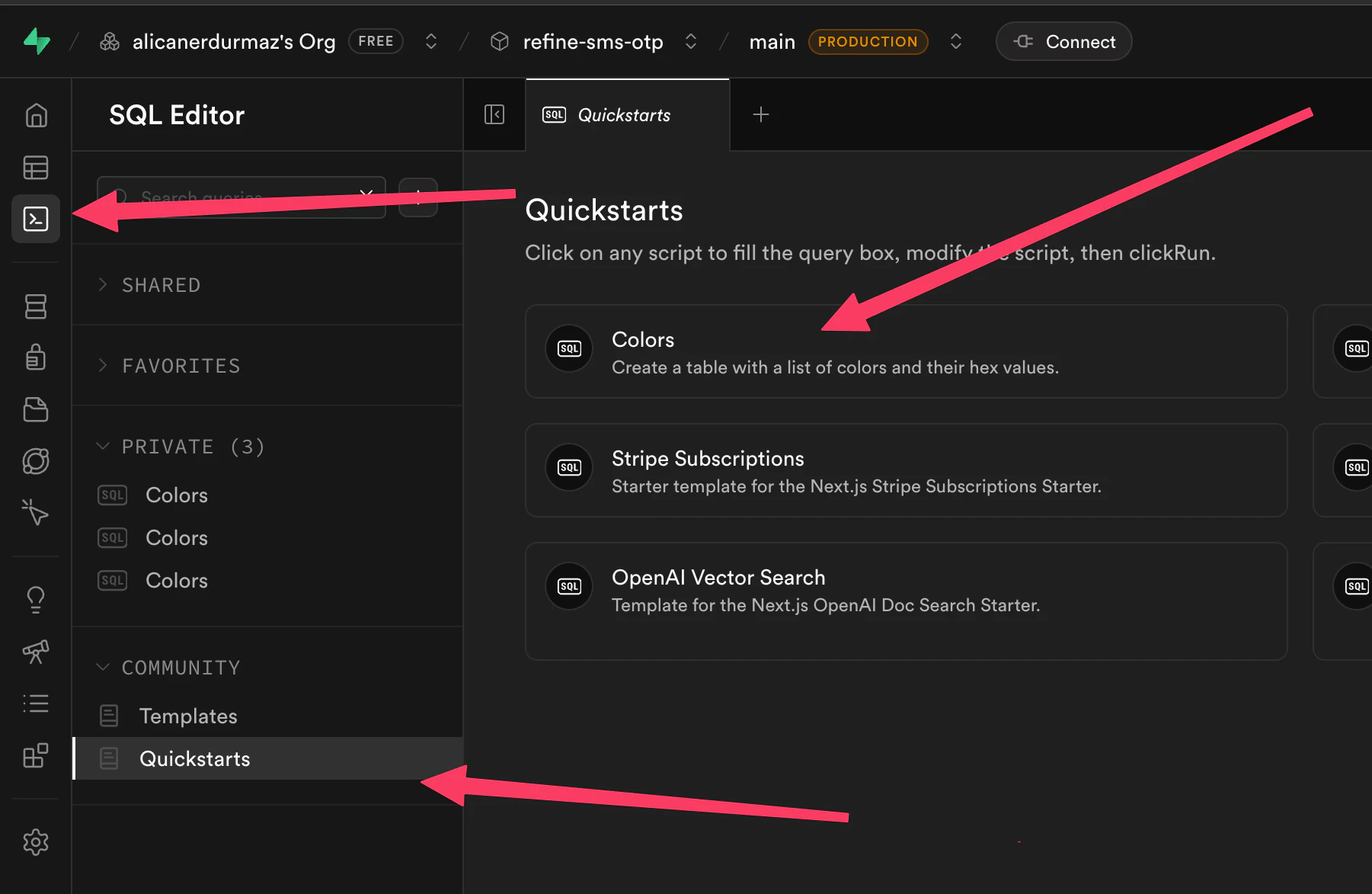
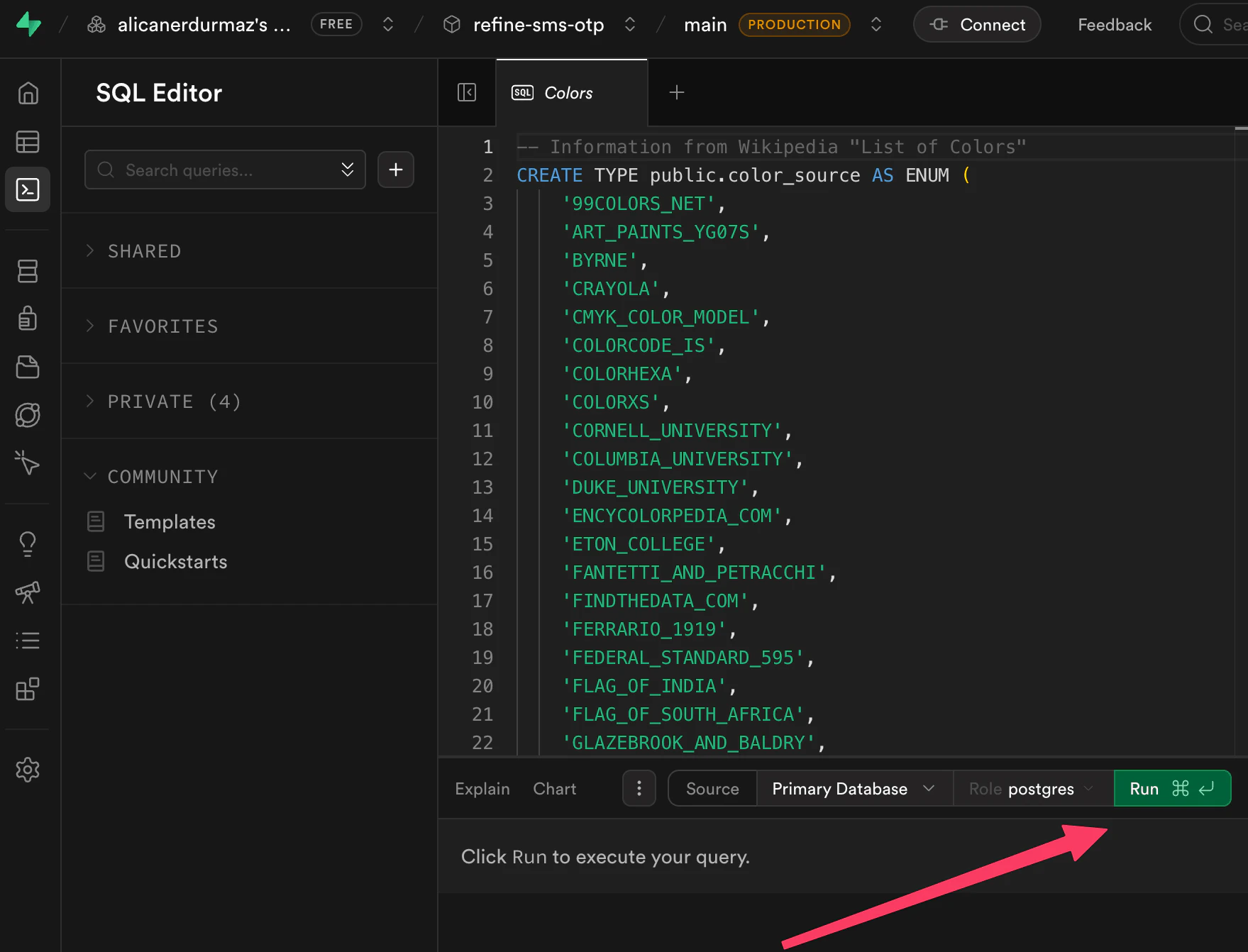
In your Supabase project, head to the SQL editor and choose the Colors example from the Quick start section. Supabase will open the prepared query for you, and you can run it directly from there.
 Supabase database tables view
 Supabase table rows view
The SQL snippet creates the colors table that the app reads from Supabase.
In the <Colors /> component, get the data from Supabase using the useList hook and render the data with shadcn Table components.
src/pages/colors.tsx
import { useList } from "@refinedev/core";

import {
  Table,
  TableBody,
  TableCell,
  TableHead,
  TableHeader,
  TableRow,
} from "@/components/ui/table";
import { Skeleton } from "@/components/ui/skeleton";

type Color = {
  id: number;
  name: string | null;
  hex: string;
  red: number | null;
  green: number | null;
  blue: number | null;
  hue: number | null;
  sat_hsl: number | null;
  light_hsl: number | null;
  sat_hsv: number | null;
  val_hsv: number | null;
  source: string | null;
};

const formatValue = (value: number | null, suffix = "") => {
  if (value === null) {
    return "-";
  }

  return `${value}${suffix}`;
};

const loadingRows = Array.from({ length: 5 }, (_, index) => index);

export const Colors = () => {
  const { result, query } = useList<Color>({
    resource: "colors",
    pagination: { mode: "off" },
    sorters: [{ field: "id", order: "asc" }],
  });

  const colors = result?.data ?? [];
  const isLoading = query.isLoading;

  return (
    <div className="overflow-hidden rounded-xl border border-border/70 bg-card shadow-sm shadow-zinc-950/5 dark:shadow-black/20">
      <Table>
        <TableHeader>
          <TableRow>
            <TableHead>Preview</TableHead>
            <TableHead>Name</TableHead>
            <TableHead>RGB</TableHead>
            <TableHead>HSL</TableHead>
            <TableHead>HSV</TableHead>
            <TableHead>Source</TableHead>
          </TableRow>
        </TableHeader>
        <TableBody>
          {isLoading
            ? loadingRows.map((row) => (
                <TableRow key={`loading-${row}`}>
                  <TableCell>
                    <div className="flex items-center gap-3">
                      <Skeleton className="size-4 rounded-full" />
                      <Skeleton className="h-4 w-20" />
                    </div>
                  </TableCell>
                  <TableCell>
                    <Skeleton className="h-4 w-24" />
                  </TableCell>
                  <TableCell>
                    <Skeleton className="h-4 w-24" />
                  </TableCell>
                  <TableCell>
                    <Skeleton className="h-4 w-24" />
                  </TableCell>
                  <TableCell>
                    <Skeleton className="h-4 w-24" />
                  </TableCell>
                  <TableCell>
                    <Skeleton className="h-4 w-16" />
                  </TableCell>
                </TableRow>
              ))
            : colors.map((color) => (
                <TableRow key={color.id}>
                  <TableCell>
                    <div className="flex items-center gap-3">
                      <span
                        aria-hidden="true"
                        className="size-4 rounded-full border border-border shadow-sm"
                        style={{ backgroundColor: color.hex }}
                      />
                      <span className="font-mono text-xs uppercase text-muted-foreground">
                        {color.hex}
                      </span>
                    </div>
                  </TableCell>
                  <TableCell>{color.name ?? "Untitled"}</TableCell>
                  <TableCell>
                    {[
                      formatValue(color.red),
                      formatValue(color.green),
                      formatValue(color.blue),
                    ].join(" / ")}
                  </TableCell>
                  <TableCell>
                    {[
                      formatValue(color.hue),
                      formatValue(color.sat_hsl, "%"),
                      formatValue(color.light_hsl, "%"),
                    ].join(" / ")}
                  </TableCell>
                  <TableCell>
                    {[
                      formatValue(color.hue),
                      formatValue(color.sat_hsv, "%"),
                      formatValue(color.val_hsv, "%"),
                    ].join(" / ")}
                  </TableCell>
                  <TableCell>{color.source ?? "-"}</TableCell>
                </TableRow>
              ))}
        </TableBody>
      </Table>
    </div>
  );
};
Create the Layout component to create an app bar with a logout button.
src/pages/layout.tsx
import { type LayoutProps, useLogout } from "@refinedev/core";

import { Button } from "@/components/ui/button";

export const Layout: React.FC<LayoutProps> = ({ children }) => {
  const { mutate: logout, isPending } = useLogout();

  return (
    <div className="min-h-screen bg-background text-foreground">
      <header className="sticky top-0 z-10 border-b border-border/60 bg-background/90 backdrop-blur">
        <div className="mx-auto flex max-w-5xl items-center justify-between px-4 py-3">
          <div>
            <h1 className="text-sm font-semibold tracking-tight">Colors</h1>
            <p className="text-xs text-muted-foreground">
              Browse the color records fetched from Supabase.
            </p>
          </div>
          <Button
            variant="outline"
            size="sm"
            disabled={isPending}
            onClick={() => logout()}
          >
            Logout
          </Button>
        </div>
      </header>
      <main className="mx-auto w-full max-w-5xl px-4 py-6">{children}</main>
    </div>
  );
};
Import the <Colors /> and the <Layout /> component in the App.tsx file, define the colors resource directly in <Refine />, and keep the generated providers in place to finish up the application.
src/App.tsx
import {
  Authenticated,
  ErrorComponent,
  GitHubBanner,
  Refine,
} from "@refinedev/core";
import { DevtoolsPanel, DevtoolsProvider } from "@refinedev/devtools";
import { RefineKbar, RefineKbarProvider } from "@refinedev/kbar";
import routerProvider, {
  CatchAllNavigate,
  DocumentTitleHandler,
  NavigateToResource,
  UnsavedChangesNotifier,
} from "@refinedev/react-router";
import { liveProvider } from "@refinedev/supabase";
import { BrowserRouter, Routes, Route, Outlet } from "react-router";

import { Toaster } from "@/components/refine-ui/notification/toaster";
import { useNotificationProvider } from "@/components/refine-ui/notification/use-notification-provider";
import { ThemeProvider } from "@/components/refine-ui/theme/theme-provider";
import { Colors } from "@/pages/colors";
import { Layout } from "@/pages/layout";
import { LoginPage } from "@/pages/login";
import authProvider from "@/providers/auth";
import { dataProvider } from "@/providers/data";
import { supabaseClient } from "@/providers/supabase-client";

import "./App.css";

function App() {
  return (
    <BrowserRouter>
      {/* <GitHubBanner /> */}
      <RefineKbarProvider>
        <ThemeProvider>
          <DevtoolsProvider>
            <Refine
              routerProvider={routerProvider}
              dataProvider={dataProvider}
              liveProvider={liveProvider(supabaseClient)}
              authProvider={authProvider}
              notificationProvider={useNotificationProvider()}
              resources={[
                {
                  name: "colors",
                  list: "/colors",
                },
              ]}
              options={{
                syncWithLocation: true,
                warnWhenUnsavedChanges: true,
              }}
            >
              <Routes>
                <Route
                  element={
                    <Authenticated
                      key="authenticated-routes"
                      fallback={<CatchAllNavigate to="/login" />}
                    >
                      <Layout>
                        <Outlet />
                      </Layout>
                    </Authenticated>
                  }
                >
                  <Route
                    index
                    element={<NavigateToResource resource="colors" />}
                  />
                  <Route path="/colors" element={<Colors />} />
                </Route>

                <Route
                  element={
                    <Authenticated key="auth-pages" fallback={<Outlet />}>
                      <NavigateToResource resource="colors" />
                    </Authenticated>
                  }
                >
                  <Route path="/login" element={<LoginPage />} />
                </Route>

                <Route
                  element={
                    <Authenticated
                      key="catch-all"
                      fallback={<CatchAllNavigate to="/login" />}
                    >
                      <Layout>
                        <Outlet />
                      </Layout>
                    </Authenticated>
                  }
                >
                  <Route path="*" element={<ErrorComponent />} />
                </Route>
              </Routes>
              <Toaster />
              <RefineKbar />
              <UnsavedChangesNotifier />
              <DocumentTitleHandler />
            </Refine>
            <DevtoolsPanel />
          </DevtoolsProvider>
        </ThemeProvider>
      </RefineKbarProvider>
    </BrowserRouter>
  );
}

export default App;
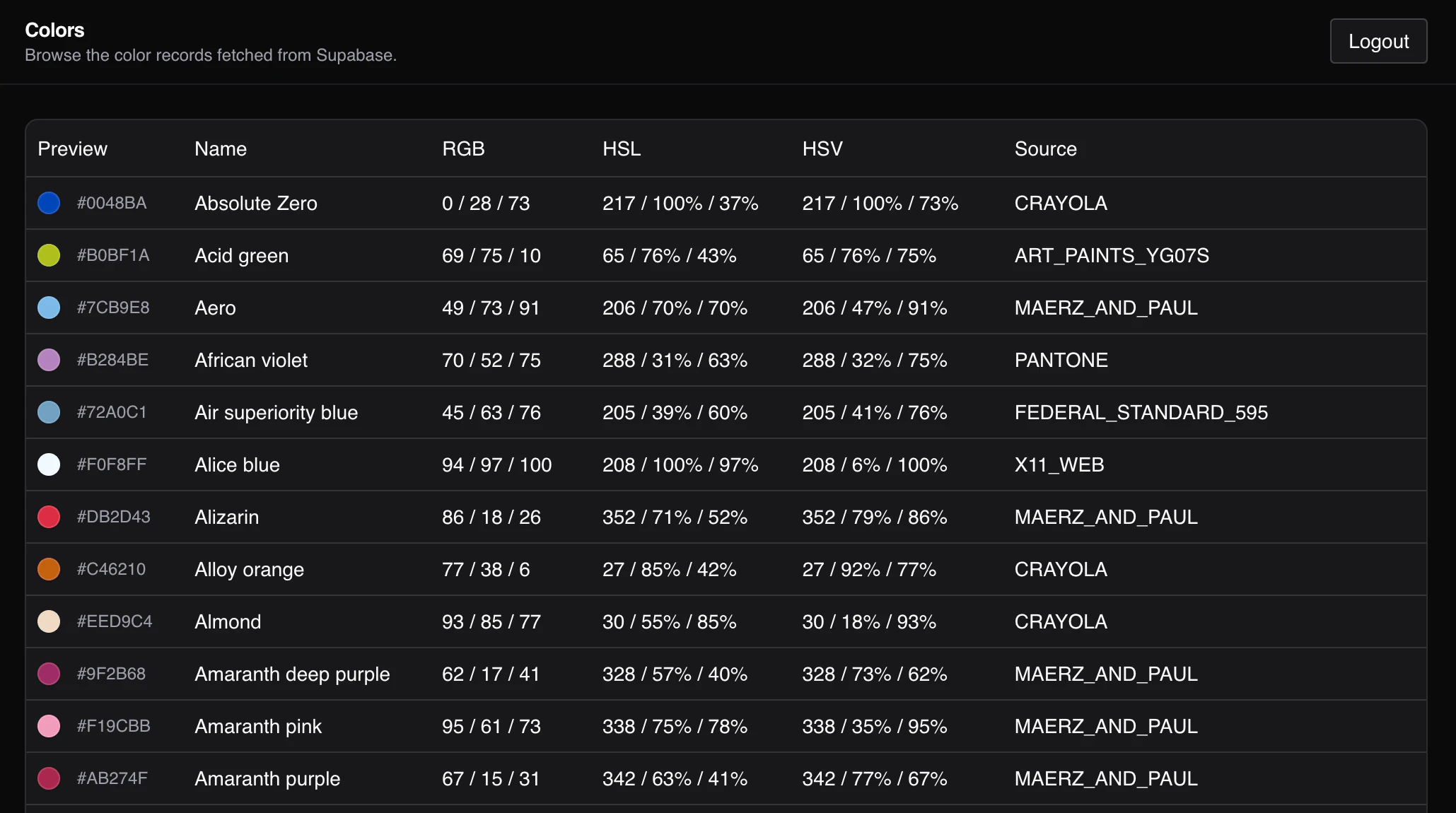 Authenticated app dashboard after login
Conclusion
OTP authentication adds an extra layer of security to your application and helps ensure that only authorized users can access it. In this article, we've gone over how to add OTP-based authentication in Refine using Supabase Auth. We've also looked at how to set up the phone auth provider in Supabase using Twilio so that users can receive their OTP tokens.
Following this article's steps, you should now have a Refine application with OTP-based authentication enabled.
If you're looking for another Supabase project with Refine, check out our guide on building a customizable issue tracker with Refine and Supabase.